
In this issue:
- User conference announcement
- Additions to the website
- New enhancement – larger popup windows
- Request for reviews extended
- Focus on contact plans
- New partner ezPay365
- User tip – search by multiple criteria
- Release news, including API update
Announcement
Virtual Collect! 2021 User Conference
On June 3-4 the Collect! User Conference will be brought direct to your screen. Though we are disappointed that we will not connect in person, the virtual format will provide other conveniences and will take less time away from your routine. Stay tuned for more details in January. Our goal is for you to leave the program with a better understanding of the industry, available technologies, and how to use Collect! to meet your collection goals.
Click here to register.
- Industry Expert Panels
- Collect! Learning Sessions
- What’s New in Collect!?
- Where is Collect! Going?
Additions to the Collect! website

FAQs and Optional Modules
Check out Solutions/FAQs on the new website for information on a host of topics.
Check out Solutions/Optional Modules on the new website for an overview of additional functionality that can help streamline your workflow.
If you want more technical information than these pages provide, just enter your topic in the search bar in Collect! Help. Access Help from the website at Support/Documentation, put Collect! Help into a browser search bar, or click the information icon in Lite or the F1 key for Entrepreneur and up.
New enhancement
Larger Popup Windows
Version 12.10.4 and up now offers a larger popup window that will dynamically scale to accommodate the popup text, so the popup does not take up more space on the screen than necessary, but can expand up to the full size of the Collect! screen. You can also insert your own line feeds with \n in the appropriate locations. Use the @message command to create a multitude of popups for many uses such as:
- Client information or directives
- Company information or directives
- Initial new business steps
- State law and FDCPA regulations
Tell others how Collect! works for you

Request for reviews extended
How about giving us an early Christmas gift by taking less than 5 minutes to make some comments about Collect! on the Capterra software review site? We want to help people who are considering Collect! to have the benefit of as many user experiences as possible. As a thank you we will enter all reviewers in a draw for a $500 credit as a Christmas gift mid-December.
Click here to leave a review.
Focus on Contact Plans
Built-in automation at your fingertips
Automation – setting your system to make routine workflow decisions and take routine actions – is key to efficient use of operator time. Collect! contains 3 key automation tools: Contact Plans, Payment Type Settings, and Work in Progress (WIP) lists. This is a quick review of how Contact Plans can further your automation goals.
Contact plans are multi-step event schedules that are applied to individual debtor accounts in one step. The default event types include activate, close, letter, note, phone, review, status change, email and 14 more. Collect! contains over 50 default Contact Plans you can use to execute standard collection processes. Additionally, once you understand how Contact Plans work you can go into any of the existing default Contact Plans and tweak them for your use. You can also create proprietary contact plans to cover event sequences not covered by the default set. Our Help documentation provides very useful instructions on how to use and build Contact Plans
When you are ready to build your own Contact Plan set, the best practice is to read all of Collect!’s Help documentation on the subject of Contact Plans. Next, map out your entire ideal workflow and identify where you can use additional Contact Plans. Then document useful sets of events that can be programmed using the options in the Event Screen. When this is complete and documented, you are ready to begin creating additional Contact Plans. Test them using the demo database. Alternatively, our support technicians are often involved in minor to major workflow projects.
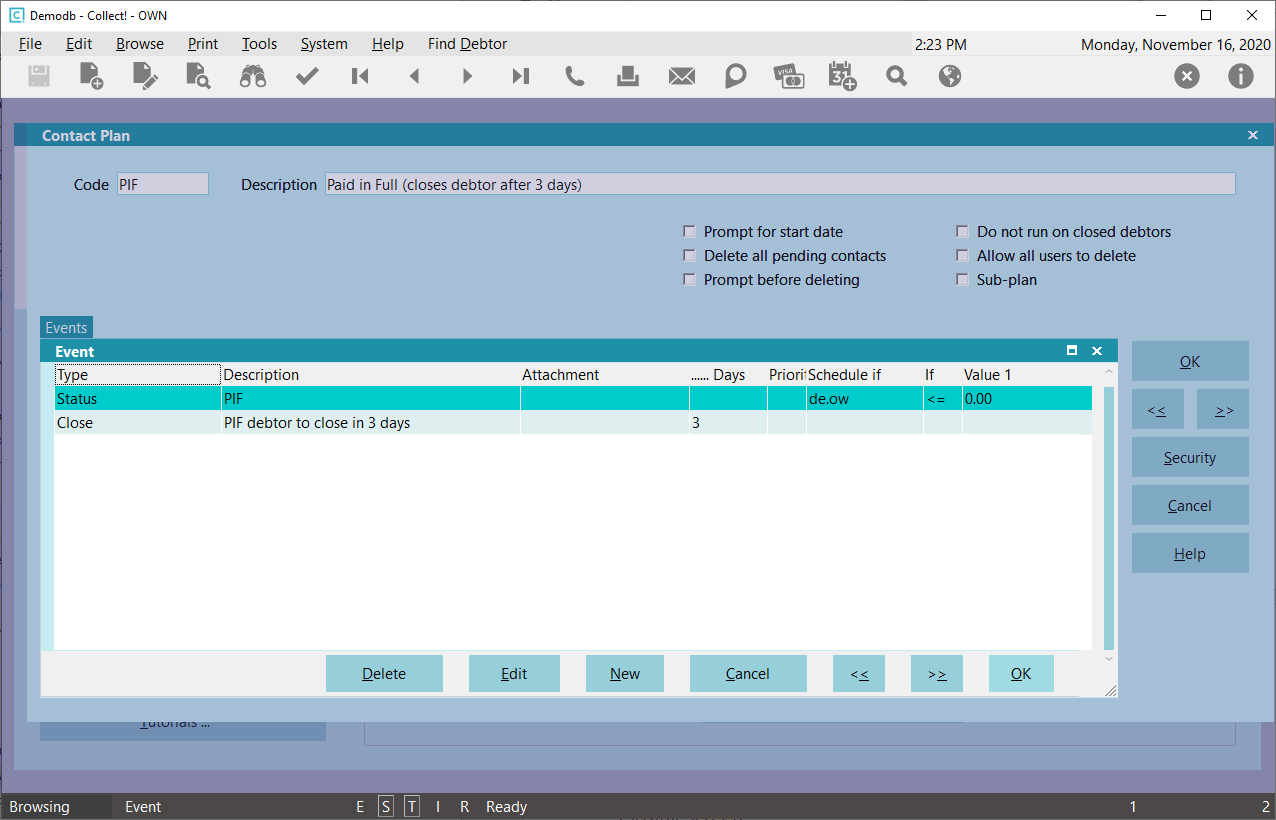
Here is an image of the PIF – Paid in Full Contact Plan. You can see that this Contact Plan schedules 2 Events.
- The first event is a Status Change to PIF if the amount in the de.ow (debtor owing) field on the Debtor Form is less than or equal to 0. A look at the Event Screen that set up this event shows that this event, namely the status change, occurs immediately, but the account is left with the existing operator.
- The second event is a Close of the account 3 days after the first event. A look at the Event Screen that set up this event shows that this event will be recorded in Notes, and the account is left with the existing operator.
New Partner – ezPay365
Make use of latest payment processing tools
ezPay365 serves the ARM/collections, health care and legal markets using the latest communication technology and procedures for payment processing. Options include mobile payments, payment portals, flexible payment options, account negotiation, IVR and convenience fees.
User Tip
The different ways to search for records
There are 4 main ways to look up records in Collect!.
The first method is Find By. Find by can be access via the Browse Menu, the Find Debtor menu, the Find Client menu, and an abbreviated Quick Search version on the Main Menu. This search allows you to search on the key fields that are indexed. By default, text entered will do a near match, but you can also do exact matches with =SearchCriteria or full partial match with *SearchCriteria entered into the field. If you want to search in a specific client number, you can enter SearchCriteria->133 in the search box. The results will display in a list that you can then navigate through.
The second method is via a list. When you open any list, you can click on a column heading and start typing to find the next record matching your text.
The third method is Search and Replace. Although this method is meant for searching records and replace data in a field, it can also be used in Search Only mode to quickly search records. This method does partial matching by default, but can also do exact matching, and there is an option for case sensitivity. To access the Search and Replace menu, go to the Edit menu, then select Search and Replace.
The forth method is Edit Search Criteria, or more simply: Find. When you have a list open, you can Go to the Edit menu, then select Find. The Edit Search Criteria box will open where you can enter your criteria. This method allows for multiple field queries and also provides the options to Exclude the criteria. For example, find all debtors that are Mode Active, but exclude the ones that are Status ACT. This method allows for searching by range instead of a single value. The Edit Search Criteria box will display only the fields for the active form with the indexed fields at the top, prefixed with the hash (#) symbol. When you click search, you will be asked whether or not you want to tag the records. If you need to search via multiple forms on the debtor, then this is possible. Let’s say that you want all the Active Debtors with a Judgment Date of 01/01/2020 to 01/31/2020 and a BK13 status. Go to Browse, then Active Debtors. Open any Debtor and clock on the Advanced button. Go to Edit, then Find and enter the Judgment Date range. Click Search and say NO to tagging the records. Close the Advance form and the Debtor to go back to the Debtor list. Go to Edit, then Find and enter the Status range. Click Search and say YES to tagging. You now have your list.
Comtech is working on a tool for Collect! that will allow very convenient table presentation of data derived from multiple criteria and multiple screen searches. Expect to read more about this in the January newsletter.
https://staging.collect.org/cv12/Help/howtosearchforrecords.html
Release News
12.11 is coming soon.
The focus feature of 12.11 is an Alpha release of the REST API. Some users will be given the opportunity to implement some work flows and provide us feedback.
If you are interested in being part of this group, please contact support@staging.collect.org.
For more information, please visit the New Features Page here.
If you are interested in upgrading, please email support@staging.collect.org.
Note:
- If you are on Collect!’s cloud solution, congratulations, you are on the latest release.
- Updating and testing in your test environment before updating your production environment is always recommended.
- If you are using webhost, and you are running 12.2 or earlier, you will need to update your webhost to the latest version at the same time as you update Collect!.
- You can download the new update here. It takes only a few minutes to download and install.